Welcome!

Greetings, SMBSD Friends!

Welcome to "All Tech-gether Now," a place for you to visit and chat about technology as it relates to teaching and learning in your classrooms. Our goal is to post a techie tidbit each week. Please let us know whether you find this space useful, and feel free to piggyback on our posts with your own technology experiences. The more we share, the more we learn; so newbies and experts alike, ask about--or tell us how--your SMARTboards, iPads, Chromebooks, PCs, laptops, smart phones (and any other fabulous technology you have) are transforming your classrooms!

We encourage you to add comments and questions to the posts you find interesting.

Your Technology Action Team

Thursday, May 22, 2014

End of the Year Technology Activities

Listed below are websites to assist you with fun end of the year projects and activities.

Math- Thinking Blocks

  • If you haven't visited this site yet, it is a must.  Thinking Blocks' colorful bar diagrams engages students while solving problems.  Students can chose the operation and degree of difficulty.


Reading- Into the Book

  • Into the Book has highly engaging activities centered around reading strategies.


Writing- Wordle

  • Have your class create individual wordles.  Wordles are a collage of words.  The more a word appears, the larger the word will be in the collage.  Students can write down a sentence describing each student in class, once the students receives his/her list of sentences, he/she will type them into the wordle and create their own personalized word collage.
  • Tagul.com is also a site that create wordles, but requires a login.  Tagul allows the creator to manipulate the image created by the words.
    • *Thank you Pinterest for the pin-spiration


Social Studies- Google Earth

  • Through satellite images, students navigate their way through terrain and 3D buildings.   Have your students explore their world and space then report back to the class about they discovered.  If you can't access Google Earth, Google Maps works as well.  


Computer Science- Code.org

  • Code.org is a great way to introduce code writing to students.  The site has different activities based on age and experience.  My third graders have really enjoyed this site all year.


If know of a great site please share below in the comment box.
Sarah

Saturday, May 17, 2014

A Couple Websites Worth A Closer Look

A Couple Websites Worth A Closer Look

I am always looking for new and better educational websites to incorporate into my class. 
Here are two ( one paid, one free) that I find to be effective and user friendly.


1. IXL   www.ixl.com 


  • IXL is a subscription website. Our school is looking at purchasing for grades all next year
  • On this site you set up individual student accounts. 

  • This allows each student to practice approximately 250 Math skills and 150 Language Arts skills. 

  • Each standard has 100 practice questions. 

  • The teacher has access to multiple reports that show mastery, usage, areas of difficulty and time spent on each standard. 
  • The students receive badges when they have mastered a standard.


2.  Quill   www.quill.org   

  
  • Quill is a daily language practice site. 
  • You sign up for an account (free) and create a class. 
  • Then you can assign a short passage to students. 
  • Each lesson addresses a specific CCS by grade level. 
  • Each lesson contains errors that the students must fix. 
  • The passage is then corrected and students receive their score. 
Mary Cullen

Using Guided Access On Your Ipad

What is Guided Access? 

  • Guided access is a tool on your ipad that lets the teacher restrict the use of the ipad to one app. 
  • Guided access requires a passcode to start and exit, therefore requiring the student to stay in the app until released by the teacher. 
  • Guided access works well in small groups, but can be labor intensive when used whole class or if students need to use more than one app during one lesson. 
  • Guided access should be put in place ahead of time to limit the down time while the teacher sets it up.

How to Use Guided Access:

1. Go to Settings  


2. Go to "General" 
     Select  "Accessibility"


3. Select "Guided Access"

4. You will be prompted to enter a 4 digit code.
    Chose something you can easily remember and do not share with students.
    Also, choose the "accessibility Shortcut" button so you can use the tripe-click shortcut. 
                              

5. Launch the app you want to restrict the students to using that session.
    Here I chose the app " Opposites"

6. Triple click the home button to start the guided access session.


7. Use your finger to draw a circle around the feature(s) you want to disable. 
A box will appear that you can resize as you wish.
Here I disabled the exit button. This keeps students in app until you reenter passcode.
Push start and you are ready to go. 


7. Now when you want to exit the app you triple-click the home button, put in passcode and you touch "end in the upper left corner. 


I use this in my class in small groups, as putting in passcode for all 36 students can take a while. However, it is very effective for keeping students in one app, especially for the more savvy upper graders who may want to exit and use another app without the teacher seeing. 
Mary Cullen 


Wednesday, April 30, 2014

Top Ipad Apps for Elementary Classes

Top Ipad Apps For Elementary Classes by Mary Cullen

My name is Mary Cullen. I teach 4th Grade GATE at Robert Bruce. We have been using ipads in our classes here for over 2 years. We are still learning new uses, getting new ideas and expanding our scope of what is possible with this technology. Many of the paid apps can be purchased for 50% off using our district discount. My class creates videos, collects research data, and creates presentations all using ipads. 
One of the most frequently asked questions I get about ipads is, "Can you recommend a good app for......"
 Below I have complied two lists. The top free apps and top paid apps we use in grades 4-6.(check back for lower grade apps in next posting)

Top Free Apps                                                                        


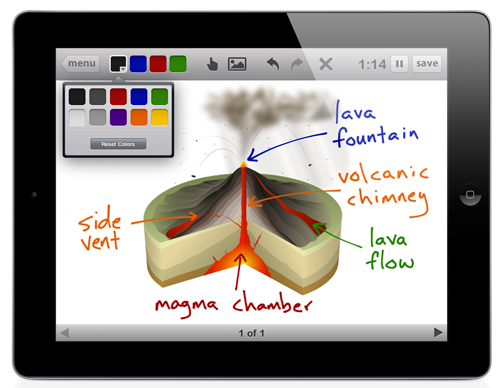
                                                                                                             1. Educreations  by Educreations Inc This app works like a whiteboard. It allows students or you to record a lesson and play it back.


2. Thinking Blocks  by Math Playground This app uses common core methods for addition, multiplication, fractions and ratios. Students use "part" and "whole" thinking to construct a model of problem. 


3. Bluster  This game allows two players to compete against each other to find rhyming words, prefixes, synonyms, antonyms and more. Has several levels and options. 


4. Please Touch The Exhibit  by Melbourne Museum This is a virtual library visit. Lots of visuals and information.


5. NASA- This app lets kids see videos, check on missions, see the latest news and more!


6. The Opposities  by Mindshapes Limited   This app lets students find antonyms and increase their vocabulary.


7. Chicktionary  by Soap   This is a boogle type game where students get a set of letters and try to make as many words as they can with the letters.


Top Paid Apps


1. Keynote - by Apple  $9.99 This is the equivalent of MS Powerpoint, but it is very user friendly and allows for use of graphics and fun transitions. My students love it.


2. Pages  by Apple    $9.99 This product is comparable to MS Word but also allows for easy manipulation of graphics and text. 


3. Analogies for Kids  by Nth Fusion $0.99
This app starts out comparing shapes and moves on to word and equation analogies. 


4. Math vs Zombies by Tap to Learn  $4.99  This app allows kids to race to turn zombies back into kids by answering the math question above their head. Has all 4 operations and levels of difficulty can be increased.


5. Stack the States - by Freecloud Design  $0.99  This app lets students answer a question about a state and then stack them up to win. You can also buy Stack the Countries.


6. Imovie  by Apple  $4.99    Endless uses for this app. Create, edit, present student made videos. 


*There are many notable apps that require a subscription, such as Spelling City, Time For Kids, and IXL. I recommend all of them but they do require you subscribe to a website. 

**There are many, many more apps, such as Glow Draw, PBS Kids, NOVA, Textropolis and Geopop. but the ones listed above are the ones we use most often in class.


I know that many of you have great apps you use and could add to this list, so let's hear your ideas!

                                                                        Mary

Friday, April 18, 2014

Microsoft Word to Google Docs

It's as easy as 1, 2, 3 to transfer your Microsoft Word documents over to Google Docs.
Here are the easy steps to follow;
Step 1: Log into your Google Drive.
Step 2: Click on the red upload arrow button. 
Step 3: Click on a file or a whole folder.
Step 4: Upload
Step 5: Once it has uploaded, you can right click on the document and open with Google docs.

Step 6:  Save as a Google Doc.  Unfortunately, some formats, fonts and images will not import properly, but so far I have had some good luck!!


Wednesday, April 16, 2014

Websites made EASY

Websites can be done easily through a Google Doc.  They don't have all the fancy stuff, but it is much easier for teachers to manage and to update daily!!  

Steps:
1. Create a new Google Doc
2. Add a large title and a picture of yourself, if desired. I linked my name to my website on the district website.  I never change that one.  It just has yearly information.
3. Add the date
4. Add a weekly calendar or a link to a Google calendar.  You can use this to post homework, daily events going on, etc.  (I haven't mastered Google Calendar)
5. Add other links or type directly in the document.
6. Share once with students and/or parents.  You will never need to share with them again.  You will need to add new students and/or parents, as needed.

Click here to see an example.


Tuesday, April 15, 2014

Google Forms: Not Just a Survey

I'm sure your principal or a neighboring teacher has used a Google Form to ask you about events at school, opinions about something, or to get your "non"shirt size for SMEEA (reps know the inside joke).  How can teachers use it in the classroom with their students??  Well I have the perfect solution!!  You can use it to quickly assess your students.  I frequently make up a 5 question form, 1 question for the student's name and the other 4 for math questions from the previous lesson.  Please click on links to view an example.
Click on the form for students.
Click on the response sheet for teachers.
The response sheet for teachers is much easier for teachers to quickly grade.

I have also been able to use it for writing.  Instead of printing out their paper and handing in to me or emailing me all 38 papers, I send out a form with 2 questions.  1 question is their name and the other is for them to post their link to their paper.  IMPORTANT!!! Students must grant access to people in SMBSD before linking in form, otherwise you will have to ask each student for permission...and that's no fun...not speaking from experience or anything :)  Click on the links below to view an example.
Click on the form for students.
Click on the response sheet for teachers.

I hope that these items help you as a teacher.
Sharon

Monday, April 14, 2014

Using Google Docs for Quick Answers

Are you a stick chooser?  Do you always call on the student who will give you the right answer?? Are you tired of correcting boring paper tests? Change it up a bit and make a quick assessment!

Students need immediate feedback and these quick answer docs are easy for the students and teacher.   Make a Google Doc that includes a 1x36 table, (or however many students you have in your class). Number each box 1-36.  Most classes assign students to numbers already or you will have to assign each student a number.  I number them according to their Chromebook number.  Make sure to save a template and make a copy of your template and rename every time you want to assign this type of assignment. Allow students to ONLY answer in their numbered space.  You can choose to print and use as an assessment or you can choose to show on a projector so students can see how others answered the same question.  Teacher's choice on whether you want them to add their name or not.  When I am printing for an assessment, I have them include their name.  I am the only one who sees it.  When I am showing on the projector, I usually do not have them include their name. See examples below.

Click here for template.
Click here for a class example.
                                                                                                                                    Sharon

Friday, April 11, 2014

Gmail

Organizing your inbox.  Google knows we all have different preferences and gives us options on organizing our inbox.  Below are three different ways to set up your inbox and the way you view your  emails.
*Note you can't have all three options.  You must pick which one works best for you.   
Good Luck! 
Sarah


  1. Unread emails separated from the group
    1. Click on the cog wheel (setting button)
    2. Choose settings
    3. Click on inbox
    4. The first drop down box gives you a list of options- choose Unread first
      1. If you are unhappy with this setting follow the steps again and click default
    5. scroll to the bottom and click save changes


2. Tabs to sort different types of emails- this places anything with a SBMSD email in the primary tab, social tab collects emails from social sites (google+), and the promotions tab holds marketing emails.  The tabs also notify you when there is a new email in each tab.  
    1. Click the cog wheel (setting button)
    2. Choose configure inbox
    3. click on the first three tabs: primary, social, and promotions (also click include starred in primary)
    4. Save
    5. Don’t like- follow the steps and unclick the boxes (you will only keep the primary tab clicked)


3. Don’t change a thing- it is wonderful the way it is.


*Challenge- Add some color to your inbox
    1. Cog wheel
    2. Themes….

Thursday, April 10, 2014

Chrome Tabs

Chrome has a wonderful option for tabs.  You can choose what tabs you want open every time you launch Chrome.  For instance, each morning when you open Chrome, you can have Aeries, and your email automatically open for you. It is great and a time saver!  
Sarah


Here is the how to:
1.  Open all the tabs you want to see when you open Chrome.
2.  Go to the three dashes at the end of the omnibox.
3.  Choose manage settings


4. Find On Startup
5.  Choose Open a specific set of pages


6. Click on set page
7.  Click on the button “use current pages”
8.  Then click OK  


*Next time you open up Chrome the pages you selected should all be open.  
Other tips-
  1. You can move tabs around from last to first by clicking and dragging the tab to the place/order you would like
  2. Need a new tab
    1. press CTRL and N keys at the same time
  3. Want the current tab in its separate window
    1. click and drag tab up, as you drag it up it will pop open a new Chrome screen.
  4. Right clicking on the tab gives you more options on tabs also.  My favorite is pinning tabs
    1. Pinning tabs (This will be a “permanent” tab, there is no x to close it)
      1. right click
      2. Choose- pin tab

Wednesday, April 9, 2014

Google Search

The best place to go if you have a question is Google.  Wondering what is wrong with your lumens, Google it.  Your Chromebook will not turn on, Google it.  Need to do a math problem, or check your spelling, Google will have the answer for you.  Sometimes Google even connects you to a YouTube video demonstrating how to fix or solve your question. It is as simple as typing your exact question into the omnibox.  
                                                               "Just Google It",                   
                                                                                  Sarah


Omnibox
The browser address bar (where you would type www.smbsd.org),  is also known in Chrome as the omnibox.  Within the omnibox you can start your search.  No longer do you have to go to Google, and then type a search.  You can also customize shortcuts. Visit settings then manage search engines.  


Advance Search
Google also has a great extended version of their search engine.   Google has an advance search to help refine and narrow your search results.  The advance search simplifies boolean language. This allows the searcher to narrow the topic and get results closer to the subject.  The best part of the advance search is the bottom half of the screen.  Google allows you to choose reading level, safe search (filter out the explicit results), recently updated sites, specify a domain, and types of documents (pdf, doc, exl).  
  • For example if your class had to report out on the current medal count in the Olympics, they would chose: updated in the last 24 hours, basic reading level, and of course filtered out explicit results with advance google search.   
*Works great for teachers and for students.  

Monday, April 7, 2014

Touch Pad

No More Mice!
These motions work on almost all newer touchpads.   
These are motions students need to become familiar with as they prepare for the SBAC on the Chromebook.  
*Another helpful key is the ALT key. The ALT key on the Chromebook activates the right click of a mouse.
Sarah